Setting Up the Companion App
Install the app, enroll your device, add more devices, and set up account recovery — step by step.
The LumaVista Companion App turns your phone into the trust anchor for your encryption. Your encryption keys live on your device, protected by your biometrics, and never leave in the clear. This guide walks you through installing the app, enrolling your first device, adding more devices, and setting up recovery — everything you need to get your encryption running.
If you want to understand why device-controlled encryption matters before diving into setup, read the companion app blog post. For a deeper look at the encryption architecture itself, see How Your Data Is Protected.
Requirements
Before you begin, make sure you have:
- An active LumaVista account
- A phone running iOS 16+ or Android 9+
- Biometric authentication enabled on your phone (Face ID, Touch ID, or Android fingerprint)
- A camera for QR code scanning
For the best key protection, use a phone with hardware security: iPhones with Secure Enclave (iPhone 5s and later) or Android devices with StrongBox or a Trusted Execution Environment (most phones from 2018 onward).
Installing the app
- Open the App Store (iOS) or Google Play (Android) on your phone.
- Search for LumaVista Companion.
- Download and install the app.
- Open the app and sign in with your LumaVista account credentials.
The app is intentionally lightweight. It is not a full LumaVista client — it handles encryption key management only. You will continue doing your research in the web app or desktop client.
First device enrollment
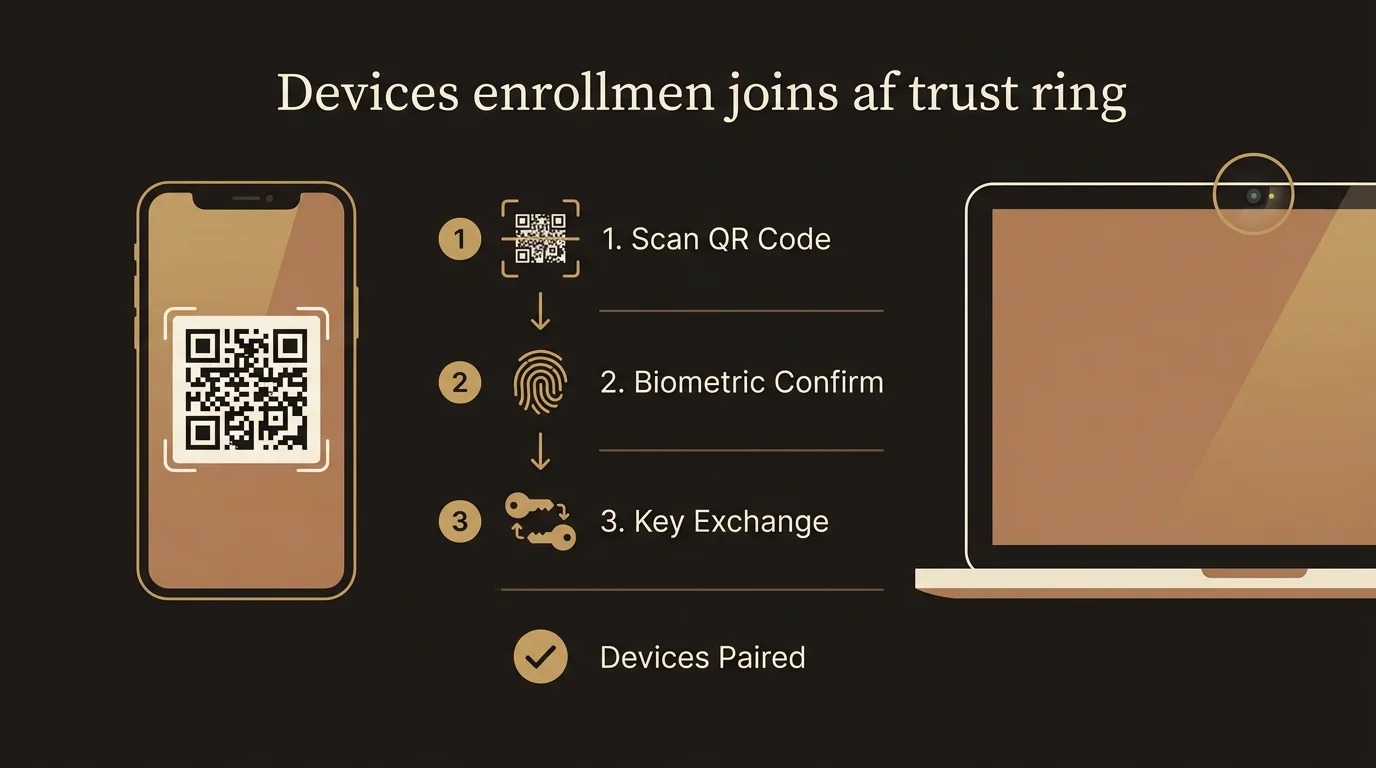
When you set up encryption for the first time, your phone becomes the origin of all your encryption keys. This is the most important step.
-
Open the companion app and sign in. If this is your first device, the app will prompt you to set up encryption.
-
Confirm your biometrics. The app will ask for a Face ID, Touch ID, or fingerprint scan. This confirms you are the device owner and unlocks the hardware security chip for key generation.
-
Key generation happens automatically. Behind the scenes, the app:
- Generates an X25519 keypair (your Device Key) and stores the private half in your phone’s hardware security chip.
- Generates your Master Key Encryption Key (Master KEK) — the 256-bit random key that will protect everything else.
- Generates your User Data Encryption Key (User DEK) — the key that encrypts your personal databases.
- Wraps (encrypts) the Master KEK using your Device Key, so only your phone can unlock it.
- Wraps the User DEK using the Master KEK.
- Sends the wrapped (encrypted) key blobs to the server. The server never sees the unwrapped keys.
-
Set your recovery password. The app will ask you to create a password of at least 12 characters. Choose something strong that you will remember — this password protects your recovery QR code. The app uses Argon2id (a memory-hard key derivation function) to turn your password into an encryption key, so even a short delay between attempts makes brute-force attacks impractical.
-
Save your recovery QR code. The app displays a QR code. This QR contains your Master KEK encrypted with your recovery password. You have two options:
- Print it and store the printout somewhere physically secure — a locked drawer, a safe, a filing cabinet.
- Save it to a password manager as an image attachment.
This QR code plus your recovery password is the only way to recover your account if you lose all your enrolled devices. We do not have a copy and cannot generate one for you. Treat it like a physical key to a safe deposit box.
-
You are done. Your phone is now the trust anchor for your LumaVista encryption. Your first device is automatically designated as an anchor device, which means it can approve new device enrollments and manage your trust ring.
Adding another device
You can enroll additional devices — a tablet, a second phone, a work laptop — so you are not dependent on a single device for access.
-
On the new device: Install the companion app and sign in with your LumaVista account. The app detects that encryption is already set up and displays a QR code containing the new device’s public key and a one-time challenge code.
-
On your existing anchor device: Open the companion app and tap Add Device (or scan the QR code from the camera). The app scans the new device’s QR code.
-
Confirm the enrollment. Your anchor device will prompt for biometric confirmation (Face ID, fingerprint, etc.). This step proves that a person with physical access to the anchor device is approving the enrollment — not software acting on its own.
-
Behind the scenes: Your anchor device:
- Unwraps the Master KEK using its own Device Key.
- Wraps the Master KEK to the new device’s public key.
- Sends the newly wrapped blob to the server, which registers the new device.
-
The new device is enrolled. It can now start sessions and decrypt your data. The challenge code expires after 5 minutes, so if the enrollment is interrupted, just start over.
You can enroll as many devices as you need. Each device gets its own wrapped copy of the Master KEK — they share the ability to unlock your data, but their individual Device Keys are independent.
Understanding anchor devices
An anchor device has special privileges in your trust ring:
- Enroll new devices — Only anchors can approve new device enrollments.
- Revoke devices — Only anchors can remove a device from your trust ring.
- Transfer anchor status — An anchor can designate another enrolled device as the new anchor.
- Promote co-anchors — You can have multiple anchors for redundancy.
Your first enrolled device is automatically an anchor. We recommend promoting at least one additional device to co-anchor status so that losing a single device does not lock you out of management functions.
Promoting a co-anchor
- Open the companion app on your current anchor device.
- Go to Devices and tap the device you want to promote.
- Tap Promote to Anchor.
- Confirm with your biometrics.
The promoted device now has full anchor privileges. Both devices can independently enroll new devices, revoke existing ones, and manage the trust ring.
Transferring anchor status
If you are switching to a new phone and want to make it your primary anchor:
- Enroll the new phone using the standard enrollment flow.
- On your current anchor device, go to Devices and tap the new phone.
- Tap Transfer Anchor.
- Confirm with your biometrics.
The new phone becomes the anchor, and your old phone is demoted to a regular enrolled device. You can then revoke the old phone if you are getting rid of it.
Revoking a device
If a device is lost, stolen, or you simply no longer use it, revoke it immediately:
- Open the companion app on any anchor device.
- Go to Devices and tap the device you want to revoke.
- Tap Revoke Device.
- Confirm with your biometrics.
What happens next:
- Immediate session termination. Any active LumaVista sessions on the revoked device are killed within seconds via a real-time broadcast. If someone has your phone, they cannot continue using an open session.
- Automatic re-keying. A new Master KEK is generated. All your DEKs (User DEK and every Project DEK) are re-wrapped with the new Master KEK. The new Master KEK is then wrapped to each remaining device’s public key. This means even if the attacker extracted the old Master KEK from the revoked device’s memory, it is now useless.
- All remaining devices must re-authenticate. On their next connection, each device will receive its new wrapped Master KEK blob and proceed normally. This is seamless — you may notice a brief re-authentication prompt, nothing more.
Revocation is designed to be fast and decisive. Do not hesitate to revoke a device if you have any doubt about its security.
Account recovery
Recovery is your safety net for when things go wrong. LumaVista provides three tiers of recovery, with increasing levels of fallback.
Tier 1: Use another anchor device
If you lose one device but have another anchor (or co-anchor) enrolled, there is nothing special to do. Open the companion app on your remaining anchor device and manage your trust ring normally — revoke the lost device, enroll a replacement.
This is why we recommend having at least two anchor devices.
Tier 2: Recovery QR code
If you lose all your anchor devices but still have your printed recovery QR:
- Install the companion app on a new phone.
- Sign in with your LumaVista account.
- When prompted, tap Recover Account.
- Scan your printed recovery QR code.
- Enter the recovery password you chose during initial setup.
- The app decrypts your Master KEK from the QR code, generates a new Device Key, wraps the Master KEK to the new device, and enrolls it as your new anchor.
- Immediately revoke all old devices from the Devices screen. This triggers a full re-key, ensuring that any compromised device keys from your lost devices are invalidated.
After recovery, we strongly recommend generating a new recovery QR code (Settings > Recovery > Generate New Recovery QR) since the old one is still valid until you re-key.
Tier 3: Organization escrow (enterprise only)
For organizations deploying LumaVista with managed encryption, an additional recovery path exists:
- Contact your organization’s IT or security team.
- An administrator with access to the organization’s HSM-backed recovery key can unwrap your Master KEK.
- The administrator wraps it to your new device’s public key.
- You are re-enrolled and can resume working.
This option is only available in enterprise deployments where the organization has configured escrow recovery.
Total loss
If you have lost all your devices, lost your recovery QR code, and your organization does not have escrow recovery — your data is unrecoverable. This is by design. The security promise of device-controlled encryption is that nobody — not even LumaVista — can access your data without your keys. That promise has to hold in both directions.
This is why saving your recovery QR code is so important.
Biometric key protection
The companion app uses your phone’s biometric sensors not just for convenience but as a security requirement for sensitive operations. Here is when biometrics are required:
| Operation | Biometric required? |
|---|---|
| Opening the app | Yes (configurable) |
| Starting a new LumaVista session | Yes — unlocks your Device Key |
| Approving a new device enrollment | Yes |
| Revoking a device | Yes |
| Transferring or promoting anchor status | Yes |
| Viewing your recovery QR code | Yes |
On iOS, the app stores your Device Key in the Secure Enclave with a .biometryCurrentSet access control flag, meaning the key becomes inaccessible if you change your enrolled biometrics (for example, adding a new fingerprint). On Android, the app uses the Android Keystore with setUserAuthenticationRequired(true), requiring biometric authentication before each key use. On devices with StrongBox, the key material never leaves the dedicated security chip.
After any cryptographic operation, the app zeroes all sensitive key material from memory immediately. Keys are not cached in application memory between operations.
Tips for a smooth setup
- Enroll at least two devices as anchors. A phone and a tablet, or two phones. Redundancy is your friend.
- Print your recovery QR on paper. Screenshots can be lost with the device. A physical printout in a locked drawer is more durable than a file on a phone that might break.
- Test your recovery flow. After setup, try recovering on a spare device to make sure your recovery QR and password work before you actually need them in an emergency.
- Revoke promptly. If you sell, lose, or decommission a device, revoke it from your trust ring the same day.
- Use a strong recovery password. The 12-character minimum is a floor, not a ceiling. A passphrase like “correct horse battery staple” is easier to remember and harder to crack than “P@ssw0rd123!”.
Next steps
- How Your Data Is Protected — Understand the full encryption architecture, data isolation, and sensitivity classification that the companion app enables.
- Model Trust and Data Routing — Learn how LumaVista ensures your sensitive data is only sent to appropriately trusted AI models.
- Security Overview — LumaVista’s security commitments at a glance.