Exporting and Sharing Reports
Export research reports as Markdown or HTML with interactive source links back to the evidence graph.


A research report is only as useful as your ability to share it, reference it later, or integrate it into your own workflows. LumaVista lets you export your completed reports as Markdown or HTML, with a distinctive feature: in-document anchor links that connect each claim in your report back to the source evidence in your research graph.
Export formats
When your report is finalized, open it and look for the Export button in the report toolbar. You will see two format options:
Markdown
The Markdown export produces a clean .md file that you can open in any text editor, import into Notion or Confluence, or commit to a Git repository. The exported file includes:
- The full report text with all headings, lists, and formatting preserved
- Inline source references formatted as anchor links
- An appendix section listing every source node that contributed to the report, with summaries of what each node found
Markdown export is the best choice when you want a portable, editable document that works with your existing tools.
HTML
The HTML export produces a self-contained .html file with inline CSS styling. Open it in any browser and you get a formatted document that looks like the report you see in LumaVista. The HTML export includes:
- Styled report content with typography, spacing, and section formatting
- Clickable anchor links from report claims to source detail sections within the same document
- A print stylesheet — hit Ctrl+P (or Cmd+P on Mac) and the document formats cleanly for printing or PDF generation
- An appendix with source node details, matching the Markdown export but rendered with full styling
HTML is the best choice when you want to share a report with someone who does not use LumaVista, or when you need a presentation-ready document.
Source links and the evidence trail
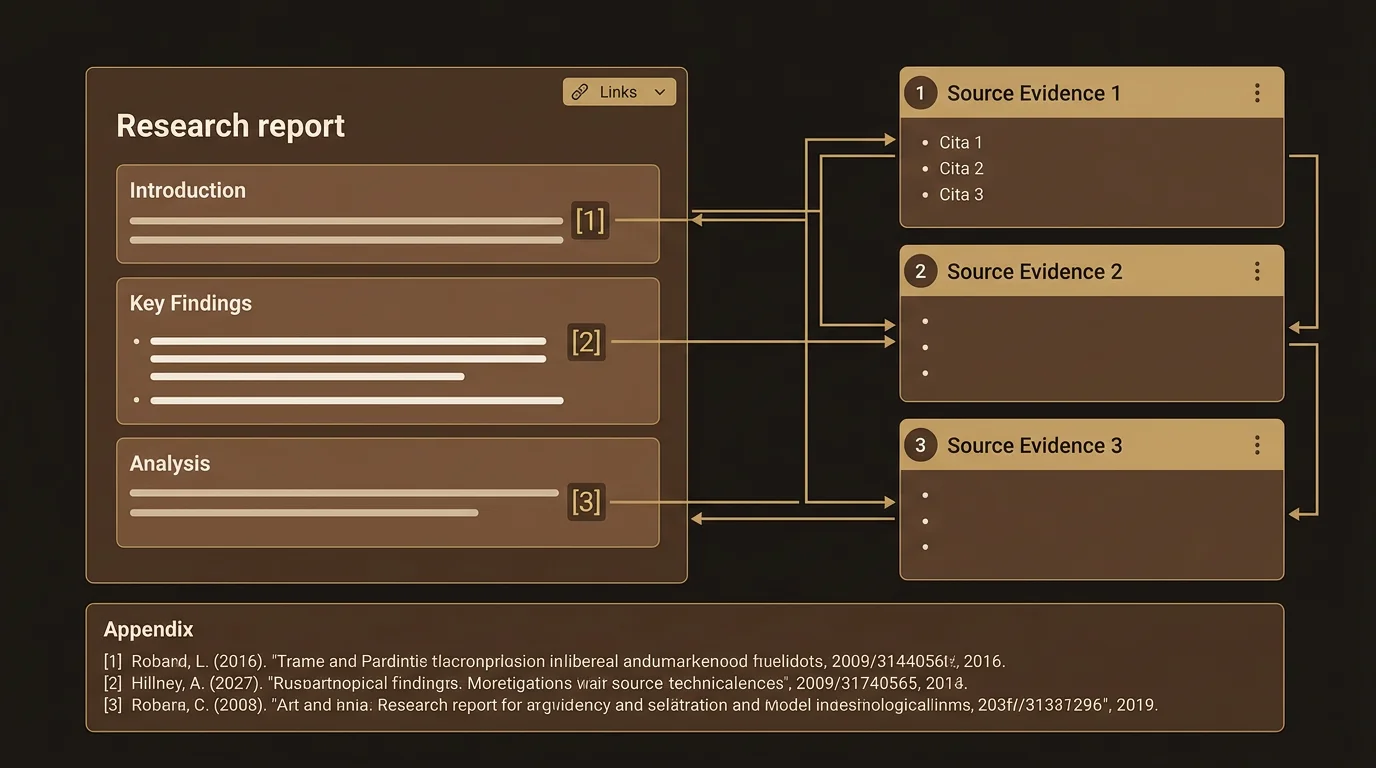
The most distinctive feature of LumaVista’s export is the source link system. Throughout your report, claims and findings are annotated with references to the specific research nodes that produced them. In the exported document, these references become clickable anchor links.
How source links work
When LumaVista’s report writer produces a section, it tracks which research nodes — search results, reasoning outputs, aggregation summaries — contributed to each claim. These references are embedded in the report as node: links.
In the exported document, each reference becomes an anchor link that scrolls to the corresponding entry in the appendix. The appendix lists every source node with:
- The node’s role in the research (search, reasoning, aggregation)
- A summary of what the node found or concluded
- The node’s position in the research graph
This creates a verifiable evidence trail. A reader can see a claim in the report, click the reference, and immediately see the underlying research that supports it.
Link validation
Before export, LumaVista validates all source links. References to nodes that no longer exist (for example, if a node was removed during project editing) are stripped out. If the validation step discovers source nodes that contributed to the report but were not referenced in the text, it appends them as additional sources. This ensures the exported document is both accurate and complete.
Choosing a format
| Need | Best format |
|---|---|
| Import into Notion, Confluence, or a wiki | Markdown |
| Share with stakeholders via email | HTML |
| Print or generate a PDF | HTML (use browser print) |
| Commit to a Git repository | Markdown |
| Edit and extend the report yourself | Markdown |
| Present in a meeting | HTML |
The appendix: your evidence index
Both export formats include an appendix at the end of the document. The appendix is not just a bibliography — it is a structured index of every research node that contributed to the report.
Each entry in the appendix contains:
- Node identifier. A unique reference that matches the inline citations in the report body.
- Node type. Whether this was a search node (gathering sources), a reasoning node (analyzing findings), or an aggregation node (combining results from multiple sources).
- Summary. A concise description of what this node found or concluded. For search nodes, this includes the query used and the key findings. For reasoning nodes, it includes the analytical conclusion.
- Position in the research graph. Where this node sat in the overall research plan — whether it was a top-level search or a deeper analysis building on earlier findings.
The appendix turns your exported report into a self-documenting artifact. Anyone reviewing the report — a colleague, a client, an auditor — can trace any claim back to its source evidence without needing access to your LumaVista account.
Working with exported reports
Markdown tips
The exported Markdown uses standard CommonMark syntax. Source references use inline link syntax pointing to anchors within the document. Most Markdown renderers (GitHub, VS Code, Obsidian) will render these as clickable links.
If you are importing into a system that does not support anchor links, the references will appear as plain text links — still readable, but not clickable within the document.
When importing Markdown into collaboration tools like Notion or Confluence, the heading structure and list formatting translate cleanly. Tables in the report are exported using standard Markdown table syntax, which most modern tools render correctly.
HTML tips
The HTML file is fully self-contained — no external stylesheets, no JavaScript dependencies, no network requests. You can email it as an attachment, host it on a static server, or open it offline.
The inline CSS uses a clean, professional design that works well on both screen and paper. If you need to customize the styling, the HTML is standard and hand-editable.
To generate a PDF from the HTML export, open the file in your browser and use the print function (Ctrl+P or Cmd+P). The print stylesheet removes navigation elements and optimizes the layout for paper. This gives you a high-quality PDF without needing a separate PDF conversion tool.
Sharing best practices
When sharing an exported report externally, consider which format best serves your audience:
- For colleagues who will read and reference the report, HTML provides the best reading experience with clickable source links and clean formatting.
- For stakeholders who will incorporate findings into their own documents, Markdown is more portable and easier to copy-paste from.
- For formal deliverables or archival purposes, export as HTML and print to PDF for a fixed-format document.
Regardless of format, the source links and appendix ensure that your research remains verifiable. Recipients can review the evidence trail even without a LumaVista account.
What comes next
Exported reports are a snapshot. If you want to iterate on your report before exporting — asking for different emphasis, structure, or depth — see Refining Reports With Chat.
For adding publication-quality diagrams to your reports before or after export, see AI-Generated Diagrams in Reports.