Uploading Documents for Research
Upload PDFs, Word docs, and more — LumaVista indexes them and retrieves relevant sections during research.


Your research does not have to rely solely on what LumaVista finds on the web. You can upload your own documents — internal reports, whitepapers, PDFs, spreadsheets, presentations — and LumaVista will index them so its agents can retrieve relevant sections during research and chat conversations.
This is especially useful when you need research that blends public information with your organization’s internal knowledge. Upload your strategy documents, competitive analyses, or technical specs, and LumaVista will draw from them alongside web sources.
Supported formats
LumaVista converts documents to a searchable format using a conversion pipeline that handles a wide range of file types:
- PDF (.pdf) — text-based and scanned documents
- Word (.docx, .doc) — Microsoft Word documents
- PowerPoint (.pptx, .ppt) — slide decks are converted with slide content preserved
- Excel (.xlsx, .xls, .csv) — spreadsheet data is converted to a readable table format
- Plain text (.txt, .md) — passed through directly, no conversion needed
- HTML (.html) — web pages saved locally
- Rich text (.rtf) — converted to plain text with formatting stripped
- JSON and XML — structured data files
The maximum file size is 50 MB per upload. For text-native formats like .txt, .md, .csv, .json, and .html, the content is used directly. All other formats go through a conversion step that extracts the text content.
How to upload
- Open your project and navigate to the Documents section.
- Click Upload or drag files directly onto the upload area.
- Select one or more files from your computer. You can upload multiple files at once.
- Each file appears in the document list immediately with a “pending” status.
The upload itself is fast — your files are stored and the response comes back right away. The heavier work of conversion and indexing happens in the background.
What happens after upload
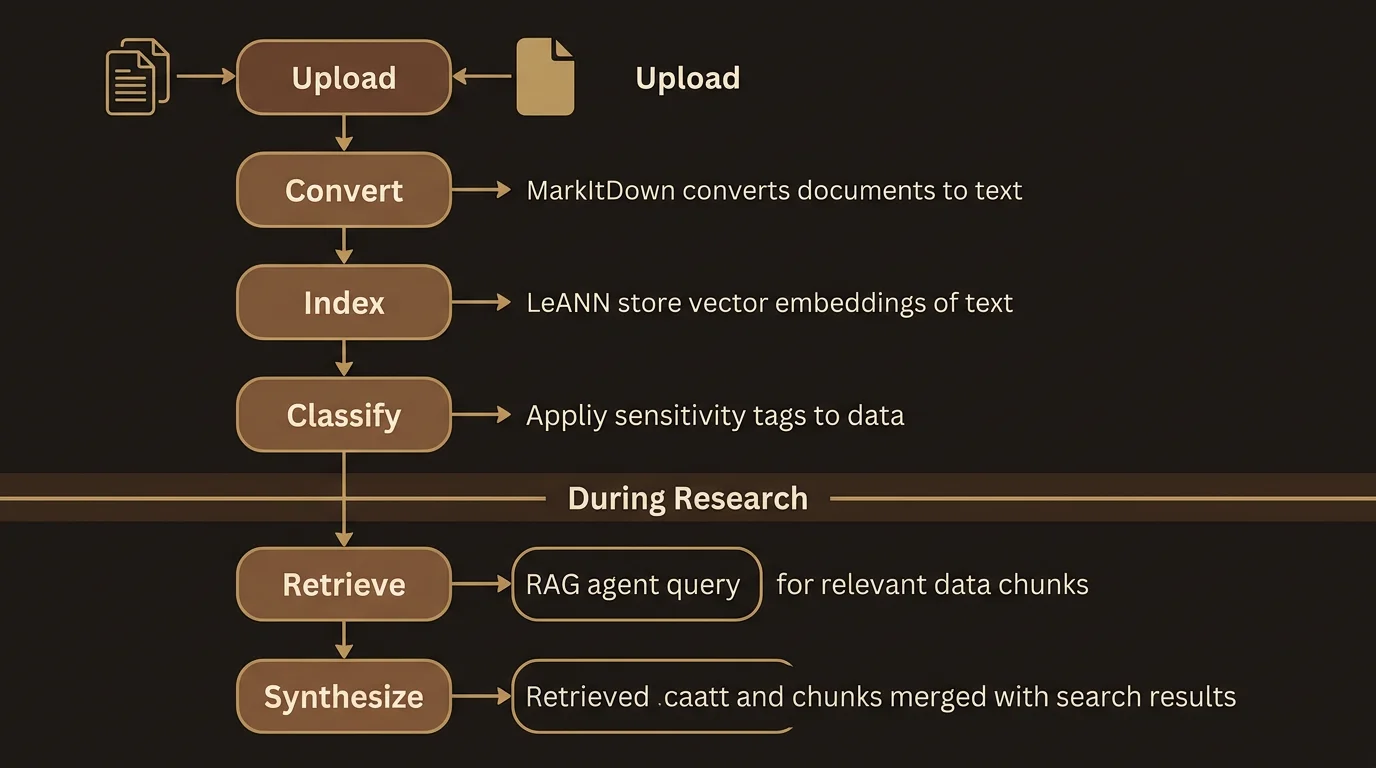
Once your file is stored, an asynchronous pipeline takes over.
Step 1: Conversion
Non-text files are sent to a conversion service that extracts their text content. A PDF with complex layouts, tables, and images is converted to clean markdown. A PowerPoint deck becomes a structured text document with each slide’s content preserved. This step typically takes a few seconds, depending on file size and complexity.
Text-native formats (.txt, .md, .csv, .json, .html, .xml) skip conversion entirely — their content is already in a usable format.
Step 2: Indexing
The converted text is broken into chunks and indexed in a vector database. Each chunk is embedded — converted to a numerical representation that captures its semantic meaning. This is what makes retrieval possible later: when you ask a question, LumaVista can find the chunks that are most semantically similar to your query, even if they do not share exact keywords.
Your document’s status changes to “indexing” during this step, then to “indexed” when complete.
Step 3: Knowledge extraction
If you have memory extraction enabled for the project or globally, the extraction pipeline also runs against the document content. Entities, relationships, and topic suggestions are identified and sent to your review queue (or auto-approved if they meet your threshold). This means uploading a document can simultaneously enrich your knowledge graph.
You will receive a notification when indexing is complete. If anything goes wrong during conversion or indexing, the document’s status changes to “failed” with an error message.
How retrieval works during research
Once your documents are indexed, LumaVista’s agents can draw from them during research — both in research projects and in chat conversations.
The RAG pipeline
RAG stands for Retrieval-Augmented Generation. When you ask a question or set a research goal, LumaVista’s RAG agent follows a four-stage process:
-
Classification. Your query is analyzed to determine whether document retrieval would be helpful. Factual questions, procedural queries, and comparison requests are good candidates. Pure conversational messages (like “thanks” or “can you explain that differently”) skip retrieval.
-
Routing. Based on the type of question, the system selects a retrieval strategy. Factual questions use semantic search. Temporal questions prioritize date-relevant chunks. Comparison queries may issue multiple searches to find information about each item being compared.
-
Retrieval. The system searches your indexed documents using the selected strategy. It returns the most relevant chunks — the specific sections of your documents that are most likely to contain useful information for answering your question.
-
Synthesis. The retrieved chunks are combined with the original question and fed to a language model that produces a coherent answer. The response includes citations pointing back to the specific documents and sections that informed it.
In research projects
When you start a research project, the planner agent can select the RAG agent as part of the research plan if the project has indexed documents. The RAG agent then retrieves relevant document sections and includes them as findings alongside web-sourced research. This means your final report can blend your internal documents with publicly available information.
In chat conversations
When you ask questions in the project chat, LumaVista checks whether the project has indexed documents. If it does, the RAG pipeline runs automatically — classifying your question, retrieving relevant sections, and blending the results into the chat response. You do not need to ask for document retrieval explicitly; LumaVista decides when it would be helpful.
Per-user document isolation
Your documents are private to your account. Each user’s documents are stored and indexed separately. No other user — even in the same organization — can access or search your uploaded documents unless you explicitly share the project.
This isolation extends to the vector index: your document embeddings are stored in a user-scoped collection, so retrieval queries only search your own documents.
Managing your documents
From the Documents section of a project, you can:
- View document status. See whether each document is pending, indexing, indexed, or failed.
- Rebuild the index. If you have uploaded several documents and want to ensure optimal retrieval performance, you can trigger a full index rebuild. This re-processes all documents and rebuilds the vector index from scratch.
- Remove documents. Deleting a document removes it from storage and from the vector index. Future research and chat queries will no longer retrieve sections from it.
Tips for good retrieval
- Upload complete documents. The conversion pipeline handles complex layouts, but cleaner source documents produce better text extraction. If you have a choice between a scanned PDF and a native one, use the native version.
- Group related documents in the same project. Retrieval is scoped to the project’s document set. If you are researching a specific topic, upload all relevant documents to that project so the RAG agent can cross-reference them.
- Use descriptive filenames. While retrieval is based on content, not filenames, clear names make it easier to manage your document collection.
- Check for failed documents. If a document shows a “failed” status, try re-uploading it. Some unusual PDF structures or encrypted files may not convert properly.
Related guides
- Getting Started with Your First Research Project — how to launch and monitor a research project that can use your uploaded documents
- Your Knowledge Graph — how document uploads contribute to your personal knowledge base