Building Workflows
Create multi-step research workflows with conditional logic, approval gates, and API integrations.


Individual research projects are powerful, but some work requires orchestration — a sequence of steps that run in order, branch based on conditions, wait for human approval, or call external APIs. LumaVista’s workflow engine lets you build these multi-step processes as directed acyclic graphs (DAGs), where each step can be a research task, an LLM call, an API request, a delay, a condition check, or an approval gate.
If you find yourself running the same sequence of research tasks repeatedly, or you need a process that pauses for human review before proceeding, workflows are the tool for the job.
What is a workflow
A workflow is a directed graph of steps. Each step performs a specific action, and edges between steps define the execution order. Steps can have multiple downstream successors, and the graph can branch based on conditions — but it cannot loop back on itself (hence “acyclic”).
Here is a simple example: a competitive analysis workflow that researches three competitors in parallel, waits for all three to complete, then generates a comparison report, and finally sends the report to an external API.
And here is a more complex one: a due diligence workflow that starts with a company overview, branches into financial analysis and legal review running in parallel, feeds both results into an approval gate where a human reviewer checks the findings, and then — based on the approval decision — either generates a full report or flags the project for additional research.
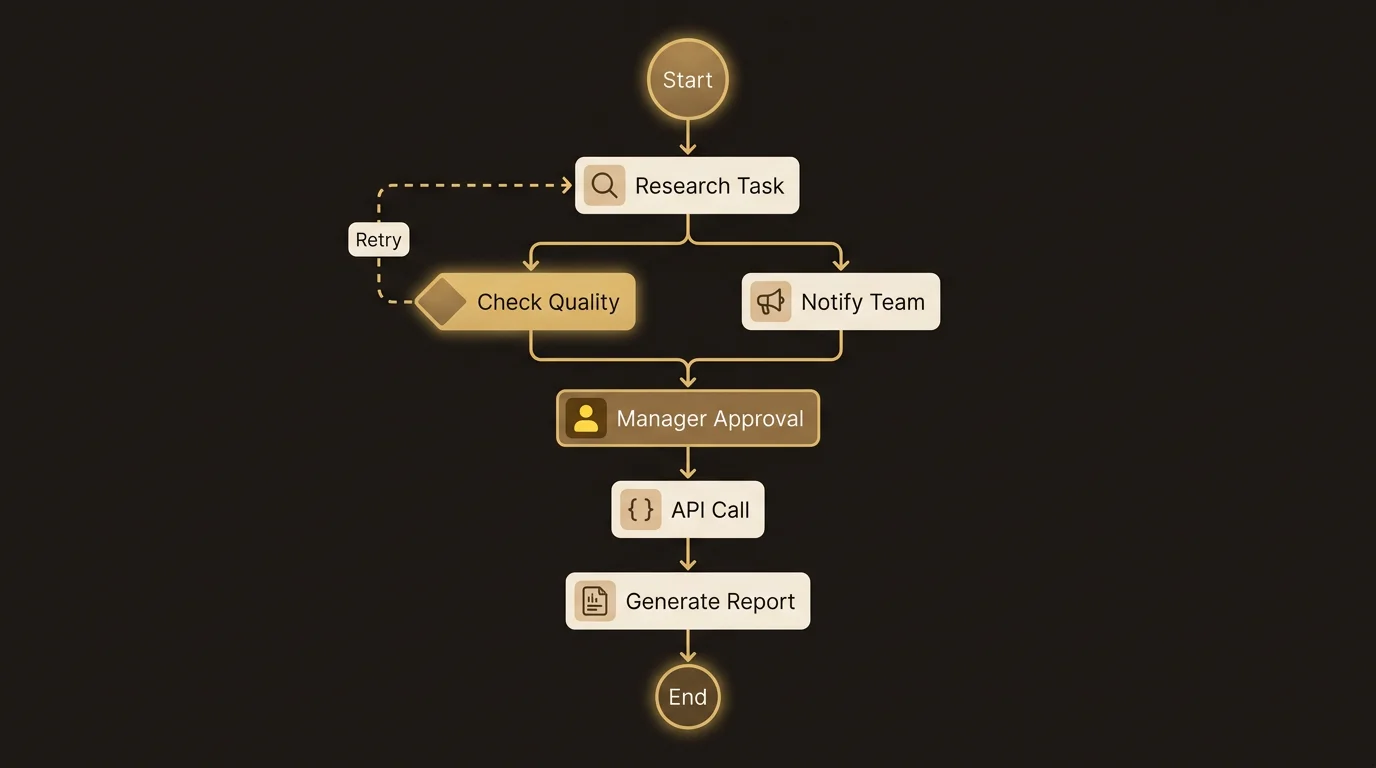
Step types
LumaVista’s workflow engine supports six step types, each serving a different purpose in your process.
Condition steps
Condition steps evaluate an expression and branch the workflow based on the result. The condition can reference outputs from previous steps using template expressions:
{{ steps.research.output.word_count > 1000 }}— branch based on research output length{{ steps.api_call.output.status == "approved" }}— branch based on an API response{{ steps.review.output.score >= 8 }}— branch based on a numeric threshold
A condition step has two outgoing edges: one for the “true” path and one for the “false” path. You can chain multiple conditions to build complex decision trees.
Delay steps
Delay steps pause the workflow for a specified duration. Useful when you need to wait between API calls (rate limiting), schedule a follow-up research task for later, or build a cooling-off period into an approval process.
Delays can be specified in seconds, minutes, hours, or days.
Approval steps
Approval steps suspend the workflow and wait for a human to approve or reject before proceeding. When a workflow reaches an approval step:
- The workflow pauses and its status changes to “suspended.”
- You receive a notification that approval is needed.
- You review the output from previous steps.
- You click Approve or Reject.
- The workflow resumes down the appropriate path.
Approval steps are secured with delegation tokens — a cryptographic mechanism that ensures only authorized users can approve a workflow. Each workflow generates its own scoped token, and approval requests are validated against it.
API call steps
API call steps make HTTP requests to external services. You configure:
- URL — the endpoint to call
- Method — GET, POST, PUT, DELETE
- Headers — including authentication tokens
- Body — the request payload, which can include template expressions referencing previous step outputs
The response is captured as the step’s output, making it available to downstream steps via template expressions. This lets you integrate LumaVista workflows with your existing tools — push results to Slack, create tickets in Jira, update a CRM, or trigger processes in other systems.
LLM steps
LLM steps send a prompt to a language model and capture the response. These are useful for intermediate processing — summarizing a previous step’s output, extracting structured data, translating content, or making a judgment call that does not require a full research project.
LLM steps use LumaVista’s configured language model provider, with cost tracking applied to the workflow.
External event steps
External event steps suspend the workflow and wait for an external signal before proceeding. This is useful for integrations where an external system needs to complete processing before your workflow can continue — for example, waiting for a webhook callback from a third-party service.
Data passing between steps
Steps communicate through template expressions. When you reference {{ steps.step_name.output.field }}, the workflow engine resolves the expression by looking up the named step’s output and extracting the specified field.
This allows you to build pipelines where each step builds on the results of previous steps:
- A research step produces findings.
- An LLM step summarizes those findings into a brief.
- A condition step checks whether the brief meets a quality threshold.
- An API call step sends the brief to an external system.
Template expressions are resolved at execution time, so you can design workflows before knowing what the actual values will be.
Creating a workflow
From the UI
- Navigate to the Workflows page from the main navigation.
- Click Create Workflow.
- Give your workflow a name and description.
- Add steps using the step builder. For each step, configure its type and parameters.
- Connect steps by defining edges — which step follows which, and under what conditions.
- Save your workflow as a draft.
The workflow editor includes a DAG preview that visualizes your workflow as a graph with color-coded nodes for each step type. This makes it easy to see the overall structure and catch errors before deploying.
From a template
LumaVista includes a library of workflow templates for common patterns — competitive analysis, periodic monitoring, multi-source aggregation, and more. You can instantiate a template and customize it to your needs. See Standard Operating Procedures for more on templates.
From the chat
You can build workflows conversationally by describing what you want in the project chat. LumaVista’s SOP builder tools let you create and modify workflows through natural language. “Create a workflow that researches the top 5 competitors, waits for my approval, and then generates a comparison report” — and the system assembles the workflow for you.
Workflow lifecycle
Drafts
New workflows start as drafts. You can save, edit, and preview a draft without it being available for execution. Drafts are versioned — each save creates a new draft version, and you can revert to a previous version if needed.
Publishing
When your workflow is ready, publish it. Publishing makes the workflow available for execution — manually, via triggers, or through the API. Publishing archives the current draft and creates a new published version.
Execution
Trigger a workflow manually from the Workflows page, or set up automatic triggers (see Triggers and Scheduling). Each execution creates a run — an instance of the workflow with its own state, step outputs, and execution history.
Suspend and resume
When a workflow reaches an approval step, a delay, or an external event step, it suspends. The workflow’s state is persisted — including all step outputs and the current position in the graph — so it can resume exactly where it left off. Even if the server restarts, suspended workflows pick up from their last checkpoint.
Workflow state is encrypted at rest using AES-256-GCM with per-workflow encryption keys. This means sensitive data passing through your workflow — API keys, research findings, approval decisions — is protected in storage.
The workflow management page
The Workflows page provides a complete management interface:
- List view. All your workflows with status indicators (draft, published, running, suspended, completed).
- Detail view. Four tabs for each workflow:
- Overview — name, description, status, and the DAG preview
- Editor — YAML-based workflow definition editor for advanced users
- Runs — execution history with status, timing, and output for each run
- Settings — trigger configuration, permissions, and deployment options
Monitoring runs
When a workflow is executing, you can monitor its progress in real time:
- Each step shows its current status (pending, running, completed, failed, suspended).
- Step outputs are visible as soon as they complete.
- Failed steps show error details.
- Suspended steps show what they are waiting for (approval, delay timer, external event).
If a step fails, the workflow stops at that point. You can review the error, fix the issue, and re-run the workflow.
Practical patterns
Sequential research pipeline
Research Topic A, then use findings to research Topic B, then aggregate both into a final report. Each step feeds its output to the next.
Parallel research with aggregation
Research three topics simultaneously, wait for all to complete, then aggregate findings into a single comparative report.
Approval-gated publishing
Generate a research report, suspend for human review, and only publish or distribute the report after approval.
Scheduled monitoring
Combine with a cron trigger (see Triggers and Scheduling) to run a competitive analysis weekly, compare results against the previous run, and alert you if significant changes are detected.
Related guides
- Triggers and Scheduling — automate when workflows run with cron, webhooks, and file triggers
- Standard Operating Procedures — turn workflows into reusable templates