Your Knowledge Graph
How LumaVista builds a personal knowledge base from your research — entities, topics, relationships, and confidence levels.


Every research project you run in LumaVista produces findings — names, concepts, technologies, organizations, facts, and the connections between them. Without a system to capture and organize that knowledge, each project starts from scratch. Your tenth project about the same industry knows no more than your first one did.
The knowledge graph changes that. It is a personal knowledge base that grows with every project, every document you upload, and every conversation you have with LumaVista. Over time, it becomes an increasingly accurate model of what you know, what you care about, and how different concepts relate to each other — and LumaVista uses it to make your future research sharper and more relevant.
What goes into the knowledge graph
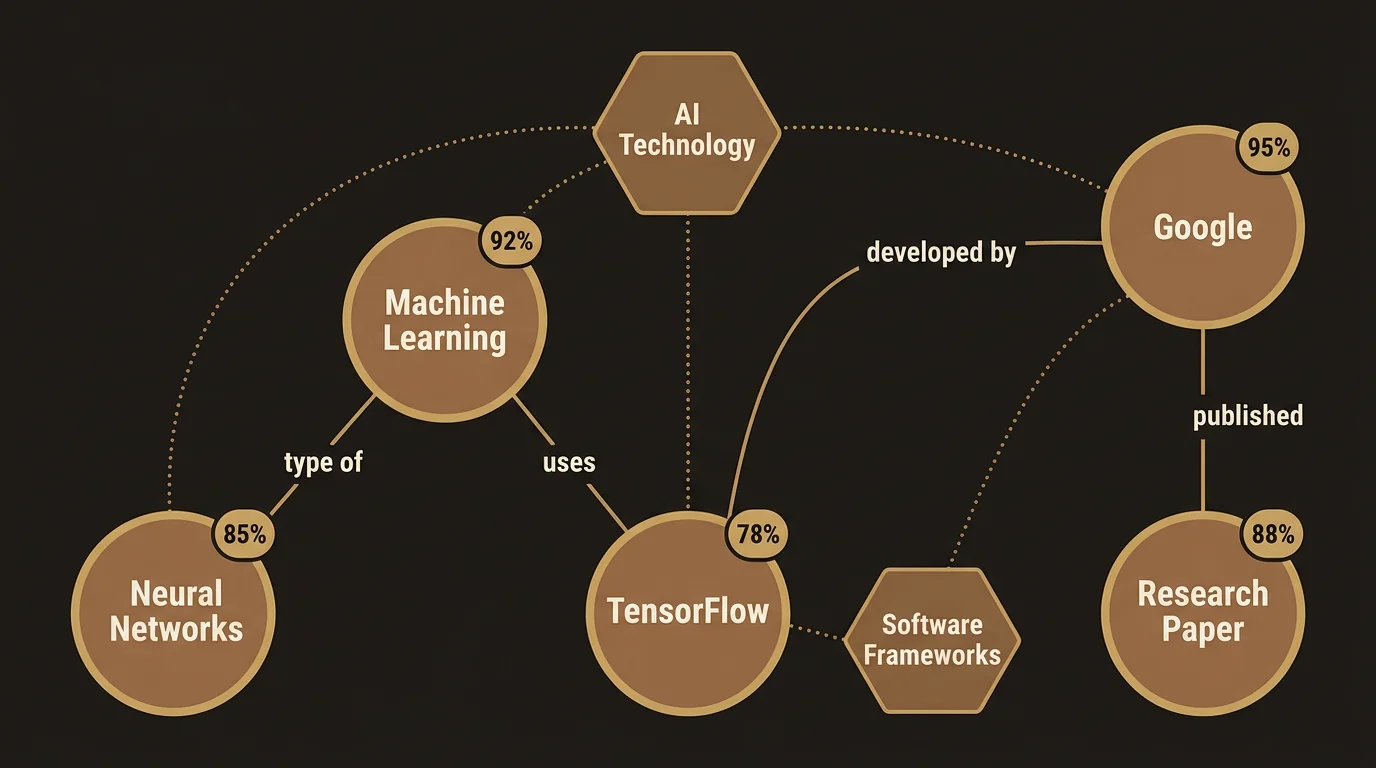
Your knowledge graph is built from three types of objects: entities, relationships, and topics.
Entities
An entity is a single piece of knowledge — an atomic fact, concept, person, technology, organization, or event. Each entity has:
- A name and type. “React Server Components” is a technology. “Gartner” is an organization. “GDPR enforcement increased 40% in 2025” is a fact.
- A description. A concise summary of what this entity represents, written in enough detail for LumaVista to understand the concept when it shows up in future research.
- Aliases. Alternative names that refer to the same thing. “RSC” and “Server Components” are aliases for “React Server Components.” When LumaVista encounters any of these names in future research, it knows they refer to the same entity.
- Confidence level. A score from 0 to 1 that reflects how well-established this piece of knowledge is. More on confidence below.
- Temporal validity. Some facts have a shelf life. An entity can have a “valid from” and “valid until” date, so LumaVista knows that “React 18 is the latest version” was true in 2022 but not in 2025.
- Source attribution. Every entity tracks where it came from — which research node, uploaded document, or chat conversation produced it.
Relationships
Relationships are typed, directed connections between entities. They capture how concepts relate to each other:
- Uses / enables. “Next.js 15” uses “React Server Components.”
- Part of. “RSC” is part of “React 19.”
- Contradicts. When LumaVista finds a new fact that conflicts with something already in your graph, it creates a contradiction relationship and flags it for your review.
- Supersedes. When you confirm that a newer fact replaces an older one, the old entity gets a supersedes relationship and its confidence drops.
- Related to. A general association between concepts that don’t fit a more specific relationship type.
Each relationship also carries a confidence score and source attribution, just like entities.
Topics
Topics are clusters of related entities that help you organize your knowledge. Think of them as folders or tags for your graph. “React 19 Architecture” might group entities about RSC, the React compiler, and concurrent rendering. Topics can be auto-suggested by LumaVista during extraction or created manually by you.
How knowledge gets extracted
LumaVista does not build your knowledge graph all at once. It extracts knowledge incrementally from three sources as you use the platform.
From research projects
When a research node completes — a search agent finishes gathering sources, a reasoning agent draws conclusions, or a report writer produces a section — LumaVista’s memory extractor analyzes the output. It identifies entities, relationships, and potential topic groupings, assigns confidence scores, and sends them to your review queue (or auto-approves them if they meet your threshold).
Extraction happens in the background. It never slows down your research. You will see new suggestions appear in your review queue after projects complete.
From uploaded documents
When you upload a document and LumaVista indexes it, the extraction pipeline also runs against the converted text. Entities found in your documents are tagged with the document as their source, so you can always trace a piece of knowledge back to the original PDF or Word file. See Uploading Documents for Research for more on the document pipeline.
From chat conversations
During chat sessions, LumaVista periodically extracts knowledge from the conversation — typically every few turns. This captures preferences you express (“I prefer practical examples over theory”), clarifications you provide, and facts you mention. Chat-sourced entities tend to have lower initial confidence since conversational statements are less formal than research findings.
Manual creation
You can also create entities directly. Open the memory page, click Create, and fill in the details. Manual entities start with full confidence (1.0) since you are explicitly stating them as known facts.
Extraction controls
Knowledge extraction is opt-in. You control it at three levels:
- Global. Enable or disable extraction across all your projects and chats.
- Per workspace. Turn extraction on for a specific workspace while keeping it off elsewhere.
- Per project. Enable extraction for a single project — useful when you are researching a new domain and want to build up knowledge quickly.
You can also configure the extraction depth:
- Shallow. Extracts only the most obvious entities — major concepts, people, and organizations mentioned explicitly.
- Standard. Entities plus relationships between them. This is the default.
- Deep. Entities, relationships, and topic suggestions. More thorough but produces more items for your review queue.
A confidence threshold filters out low-quality extractions before they reach your queue. The default is 0.5 — anything the extractor is less than 50% confident about gets discarded automatically.
Understanding confidence levels
Confidence is a number from 0 to 1 that represents how well-established a piece of knowledge is. It affects how prominently an entity appears in search results and how likely LumaVista is to use it when enhancing your future research queries.
How confidence is set
- LLM extraction. The extractor self-assesses its confidence when identifying entities. A clearly stated fact from a reliable source might get 0.85. A vague implication might get 0.55.
- Manual creation. Entities you create yourself start at 1.0.
- User approval. When you approve an extracted entity, its confidence is boosted to at least 0.8.
- User editing. Editing an entity resets its confidence to 1.0 — you have personally verified it.
How confidence decays
Knowledge that goes unused gradually loses confidence. The decay is gentle — roughly 50% reduction after a full year of no access. This means entities that LumaVista keeps referencing in your research stay fresh, while obscure facts you extracted once and never revisited slowly fade toward the background.
Entities never disappear automatically. Even at very low confidence, they remain in your graph and are visible in the management UI. You decide when to remove something.
Confidence thresholds
- Above 0.3. Active — included in search results and used to enhance your research queries.
- 0.1 to 0.3. Stale — deprioritized in retrieval and flagged for review. LumaVista still knows about them but won’t proactively reference them.
- Below 0.1. Dormant — excluded from retrieval entirely. Visible only when you browse your knowledge base directly.
How memory improves future research
The real value of the knowledge graph is not just having a record of what you know — it is how LumaVista uses that record to make your future work better.
Prompt enhancement
When you start a new research project or ask a question in chat, LumaVista searches your knowledge graph for relevant entities. It then rewrites your query to include context from your existing knowledge. For example:
You type: “What is new in frontend frameworks?”
LumaVista finds in your graph: React 19, Next.js 15, RSC, Svelte 5, and a preference for practical examples over theory.
The enhanced query becomes: “What is new in frontend frameworks, particularly React 19/Next.js 15 (RSC, compiler changes) and Svelte 5? Focus on practical migration impacts and code examples rather than theoretical architecture.”
This means your research starts from a more informed position. You get results tailored to your existing expertise rather than generic overviews.
Transparency options
You control how visible prompt enhancement is:
- Always preview. LumaVista shows you the rewritten query before running it. You can accept, edit, or skip the enhancement.
- Research only. Preview for research project goals; silent enhancement for chat questions.
- Silent with attribution. No preview, but LumaVista tags its responses with which memory entities it used — so you can see the influence without being asked to approve every enhancement.
Scope resolution
When LumaVista retrieves memory context for a query, it follows a hierarchy: project-specific knowledge takes priority over workspace-level knowledge, which takes priority over global knowledge. If you have conflicting entities at different scopes, the most specific one wins. This means you can have nuanced, context-specific knowledge without it bleeding into unrelated projects.
Contradiction detection
When new knowledge is extracted that conflicts with something already in your graph, LumaVista does not silently overwrite the old fact. Instead, it creates a “contradicts” relationship between the two entities and flags both for your review.
You then have four options:
- Keep the new fact. The old entity gets a “supersedes” relationship and its confidence drops to 0.1.
- Keep the old fact. The new extraction is dismissed.
- Keep both. Sometimes two apparently contradictory statements are actually both true in different contexts. You can explain the nuance and keep both entities.
- Merge. Combine the old and new into a single updated entity.
This approach ensures your knowledge graph stays accurate without LumaVista making assumptions about which information is more current or correct.
What is next
Your knowledge graph is most useful when you actively manage it. Learn how to review suggestions, set auto-approve thresholds, and organize your knowledge base in Managing Your Knowledge Base.
For information on using the research chat — which both benefits from and contributes to your knowledge graph — see Research Chat.