The Guided Prompt Builder
Choose a research template, answer clarifying questions, and get a structured prompt — no prompt engineering required.


The quality of your research depends heavily on the quality of your prompt. A vague question produces a vague report. A focused, well-structured question produces something genuinely useful. The guided prompt builder exists to bridge that gap — it takes your rough idea and turns it into a structured research prompt through a short conversation, without requiring you to know anything about prompt engineering.
How it works
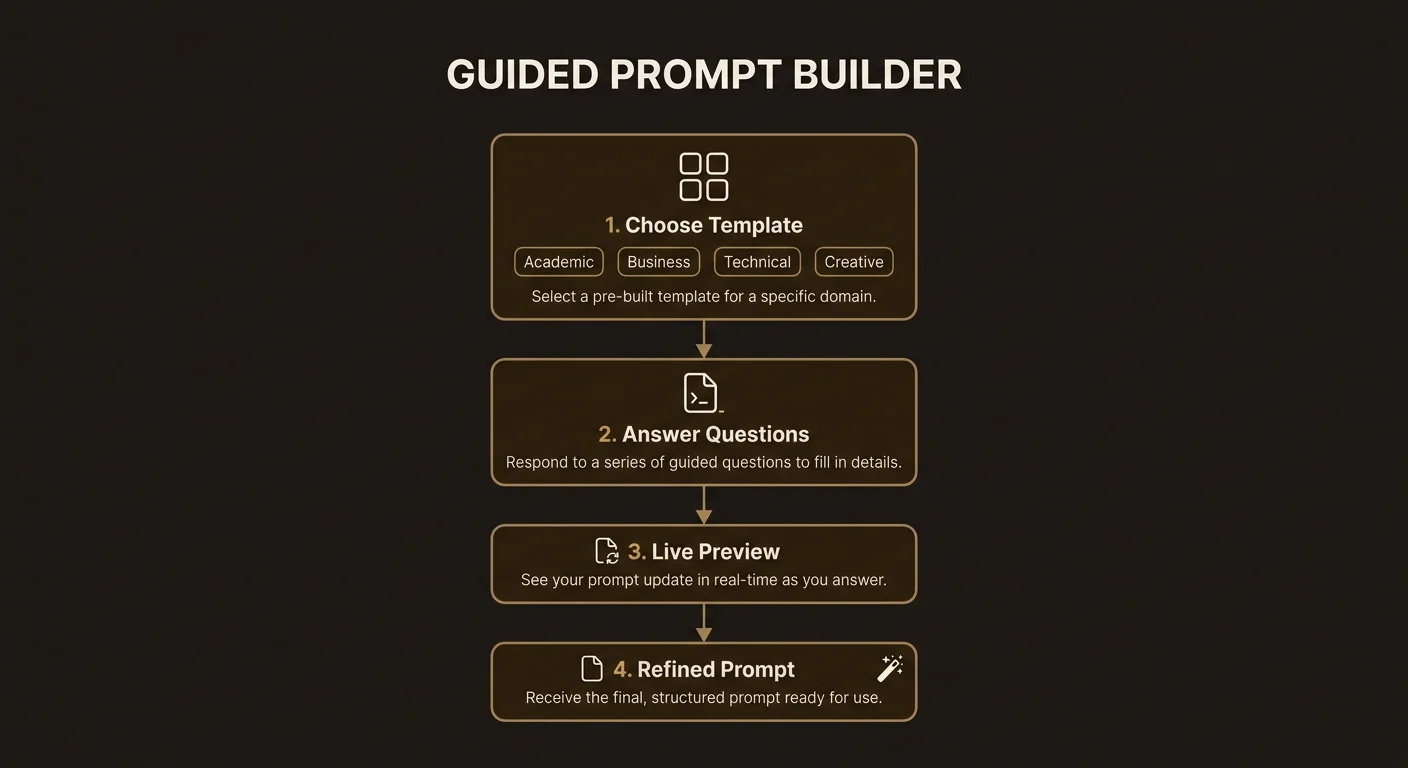
The prompt builder is a conversational interface that appears when you create a new project. Instead of dropping you into an empty text box and hoping for the best, it walks you through a series of steps:
- Choose a template that matches your research type.
- Describe your initial thoughts — even a rough idea works.
- Answer clarifying questions that help narrow the scope.
- Review a structured suggestion with sections, exclusions, and recommended settings.
- Refine or accept — keep chatting to adjust, or launch the project.
The builder does not call the AI until you type your first message. Selecting a template simply sets the context for the conversation ahead.
Templates
Templates shape the kind of research you get. Each one defines a different set of default report sections and asks different clarifying questions. Choose the one that best fits your goal:
Academic
Default sections: Theoretical foundations, Literature review, Methodology analysis, Key debates and gaps, Implications.
Best for: Literature reviews, theoretical comparisons, methodology evaluations, research gap analysis. The builder will ask about your field of study, whether you are looking at specific time periods or geographic contexts, and what level of background the report should assume.
Business
Default sections: Market landscape, Competitive analysis, Financial implications, Strategic options, Risk assessment.
Best for: Market research, competitive intelligence, strategic assessments, investment analysis. The builder will ask about your industry, target market, and whether you need quantitative data (pricing, market size) or qualitative analysis (positioning, trends).
Technical
Default sections: Architecture overview, Implementation approaches, Performance considerations, Trade-offs, Best practices.
Best for: Technology evaluations, architecture decisions, implementation comparisons, performance benchmarking. The builder will ask about your tech stack, constraints, and whether you are comparing specific solutions or exploring a problem space.
Creative
Default sections: Themes and concepts, Narrative structure, World-building research, Audience analysis, Inspirations and references.
Best for: Writing research, creative project planning, audience studies, cultural analysis. The builder will ask about your medium, audience, and what kind of reference material would be most useful.
General
Default sections: Background and context, Key dimensions, Analysis, Perspectives, Recommendations.
Best for: Anything that does not fit neatly into the above categories. The builder adapts its questions based on what you describe.
Clarifying questions
After you type your initial thoughts, the builder asks targeted follow-up questions. These come in three formats:
Free text — Open-ended questions for nuanced answers. “What specific aspects of this topic matter most to you?” or “Is there a particular time frame you are interested in?”
Single choice — A set of option chips where you pick one. The builder uses these for mutually exclusive choices like target audience or research depth. Tap an option to select it and send your answer immediately.
Multi-select — A set of option chips where you can pick several. Used when multiple answers apply — for instance, “Which of these market segments are relevant?” You toggle selections on and off, then tap the “Send selection” button when ready.
The builder typically asks two to four rounds of questions. It is looking for:
- Scope — How broad or narrow should the research be?
- Audience — Who is the report for? This affects language and depth.
- Existing knowledge — What do you already know? This feeds into the exclusion system.
- Priorities — Which aspects of the topic matter most?
The exclusion system
One of the builder’s most useful features is its ability to exclude topics you already know well. If you tell the builder you are an expert in a particular area, it suggests skipping the basics and focusing research time on what you do not know.
Exclusions appear as tags in the suggestion card. Each tag has a remove button — if the builder excludes something you actually want covered, just remove it. You can also add topics to exclude during the conversation by saying something like “I do not need background on X, I already know that well.”
As LumaVista learns your expertise over time through its memory system, exclusions become more automatic. The builder can pull from your past research to suggest what to skip without you needing to say anything.
The structured suggestion
After enough conversation (usually two or more exchanges), the builder generates a structured prompt suggestion. This appears as a card in the chat with several components:
Prompt preview — The full assembled prompt text, structured with section headers. This is what the research agents will work from.
Sections — A collapsible list showing each report section the agents will produce. Sections are based on the template defaults but adjusted based on your conversation. The builder might add sections that emerged from discussion or drop ones you indicated are not relevant.
Exclusions — Tags showing topics the agents will skip. Removable if you change your mind.
Profile and limits — The recommended research profile (Balanced, Deep, or Quick) and graph settings like maximum depth and node budget, with brief explanations of why the builder chose them.
Live refinement
The suggestion is not final until you accept it. If something looks off, keep chatting:
- “Actually, add a section on regulatory implications.”
- “The scope is too broad — focus just on the European market.”
- “I do not need the literature review section.”
Each message triggers a new suggestion that updates in place. You will see changed sections highlighted briefly so you can spot what shifted.
Accepting and launching
When the suggestion looks right, click Accept & Create. This does two things:
- Creates your project with the structured prompt, selected profile, and configured limits.
- Starts the research agents immediately.
You are taken to the project view where you can watch the agents work. The prompt you refined in the builder becomes the foundation for everything the agents do from here.
Tips for better prompts
Even with the builder, a few habits make a noticeable difference in report quality:
- Be specific about what “good” looks like. Instead of “research AI in healthcare,” try “compare diagnostic accuracy of AI radiology tools versus human radiologists, focusing on peer-reviewed studies from 2023 onward.”
- State your use case. “I am writing a board presentation” or “I need to make a build-versus-buy decision” gives the builder context that shapes the entire report structure.
- Mention what you already know. This lets the exclusion system work for you. “I am already familiar with the technical architecture — focus on business implications” avoids wasting research budget on ground you have covered.
- Do not worry about perfection. The builder is designed to refine rough ideas. Start messy and let the conversation shape it.
Related docs
- Your First Research Project — End-to-end walkthrough of creating and running a project
- Guiding Your Research: Human-in-the-Loop — How to steer the research process once agents are running