The LumaVista Companion App: Your Encryption Keys, Your Phone
By LumaVista Team
You wouldn’t give your house key to a stranger and ask them to hold onto it for safekeeping. But that’s essentially what happens when most cloud services manage your encryption keys for you. They hold the keys, they control access, and if they get breached — or served with a subpoena — your data is exposed whether you like it or not.
We built the LumaVista Companion App to fix that. It’s a small app for your iPhone or Android phone that turns your device into the trust anchor for your LumaVista encryption. Your encryption keys live on your phone, protected by your face or fingerprint, locked inside your device’s hardware security chip. Not on our servers. Not in a database we control. On your phone, where they belong.
What does it actually do?
The companion app handles four things:
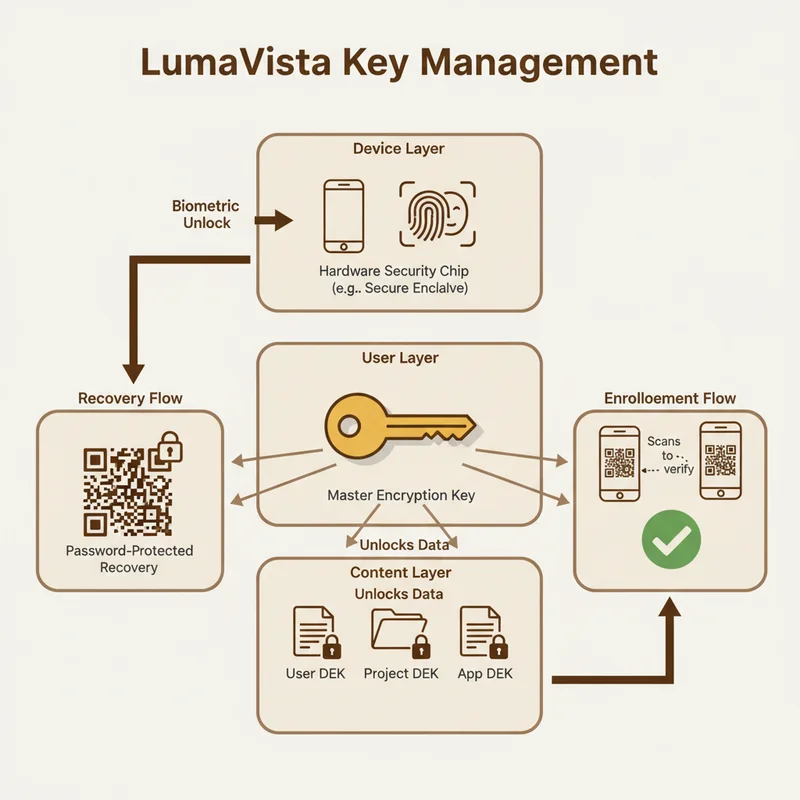
Device enrollment. When you set up LumaVista encryption for the first time, the app generates your Master Encryption Key right on your phone. It never leaves the device unencrypted. When you want to add another device — say, your tablet or work laptop — the app generates a QR code. Your existing device scans it, approves the enrollment with a biometric check, and securely shares access. No encryption keys pass through our servers in the clear.
Device revocation. Lost your phone? Open the app on another enrolled device, tap the device you want to remove, and it’s instantly revoked. All active sessions on that device are killed immediately. If someone finds your phone, they can’t access your research data — even if they somehow get past your lock screen.
Anchor management. At least one of your devices is designated as an “anchor” — the device that can approve new enrollments and manage your trust ring. You can transfer anchor status to a new phone, or promote multiple devices to co-anchor status so you’re not dependent on a single device.
Account recovery. During setup, the app generates a recovery QR code protected by a password you choose. Print it, store it somewhere safe. If you ever lose all your devices, scanning that QR from a new phone restores your encryption keys and revokes everything else. It’s your safety net.
Why your phone?
Your phone has something most computers don’t: a dedicated hardware security chip. On iPhones, it’s called the Secure Enclave. On Android, it’s the Trusted Execution Environment (or StrongBox on newer devices). These chips are purpose-built to store cryptographic keys in a way that even the phone’s own operating system can’t extract them.
The companion app uses this chip to protect your encryption keys. When you authenticate with Face ID or your fingerprint, the chip briefly unlocks your key material, the app performs the cryptographic operation it needs, and then immediately zeroes everything from memory. Your keys are never sitting around in app memory waiting to be scooped up.
This isn’t security theater. It’s the same hardware-backed approach that protects your Apple Pay transactions and your banking apps. We’re just using it for your research data instead.
For individuals
If you’re using LumaVista for personal research, the companion app gives you something rare: genuine end-to-end encryption where you — not us — control the keys. Here’s what that means in practice:
- We can’t read your research. Your data is encrypted with keys only your devices hold. Even if someone compromised our servers, they’d get encrypted blobs they can’t decrypt.
- You control access. You decide which devices can access your data. Revoke a device, and access is cut instantly.
- Recovery is in your hands. Your recovery QR is the only backup, and it’s protected by a password only you know. We don’t have a copy. We can’t reset it for you. That’s the point.
Getting started
- Download the LumaVista Companion App from the App Store (iOS 16+) or Google Play (Android 9+)
- Open the app and sign in with your LumaVista account
- The app generates your encryption keys and protects them with your biometrics
- Set a recovery password (at least 12 characters) and save the recovery QR somewhere safe — print it or store it in a password manager
- You’re done. Your research data is now end-to-end encrypted with keys only your phone controls
Adding more devices is just as easy: open the app on your new device, show the QR code, and scan it from your existing phone.
For organizations
If you’re deploying LumaVista across a team, the companion app solves a problem that keeps security teams up at night: how do you give users strong encryption without creating a key management nightmare?
What your security team gets
Zero-knowledge architecture. Your employees’ encryption keys never touch your servers or ours. There’s no central key escrow to protect (or get breached). Each user’s phone is their own key management device.
Hardware-backed key storage. Keys are protected by the same secure hardware that banks and payment processors rely on. No software-only key storage, no keys in browser localStorage, no keys in config files.
Auditable device management. Every enrollment, revocation, anchor transfer, and recovery event is logged. Your security team can see which devices are enrolled, when they were last active, and who has anchor privileges.
Instant revocation. When an employee leaves or a device is compromised, revoking access is immediate — not “we’ll get to it during the next key rotation cycle.”
Deployment options
Self-service (default). Each user installs the companion app and manages their own device enrollment. Works well for small teams and organizations that trust their users to manage their own security.
Managed distribution. Deploy the app through your MDM solution (Intune, Jamf, etc.). Pre-configure the API endpoint so users don’t need to enter server details manually.
The companion app is deliberately simple. It doesn’t try to be a full LumaVista client — it’s a focused key management tool. Your team does their research in the web app or desktop client. The companion app just makes sure the encryption keys stay where they should: on devices your people physically control.
What to do now
- Download the companion app from the App Store or Google Play
- Enable encryption in your LumaVista account settings
- Set up your recovery QR and store it somewhere safe — a printed copy in a locked drawer works great
- Enroll your other devices by scanning QR codes from your anchor phone
- For teams: talk to your security team about deploying the app through your MDM and review the audit logging options
- Test your recovery flow — try recovering on a spare device to make sure your recovery QR and password work before you actually need them