Getting Work Out
Choose what the research becomes — report, executive summary, comparison matrix, LinkedIn posts — then export it as Markdown, HTML, PDF or JSON with the evidence trail intact.


A finished research run is evidence, not a deliverable. Turning it into something you can send involves two separate choices, and it is worth keeping them apart:
- The form — what kind of document this becomes. A written report and a comparison matrix are built from the same evidence and are not the same artifact.
- The format — how that document is encoded. Markdown, HTML, PDF, JSON.
You pick the form once and can pick it again as often as you like; the format is chosen at the moment you export.
Choosing a form
Open a completed project and choose Generate report. The dialog walks four steps.
1. Output
What you want. The catalog is not fixed — it comes from the strategy the project ran, so a due-diligence run and a landscape survey offer different things, and neither offers something that would not make sense for the evidence it gathered.
Across the catalog:
| Form | What you get |
|---|---|
| Written Report | The full document — sections, citations, evidence trail. The default. |
| Executive Summary | The decision and what supports it, compressed for someone who will not read the full thing. |
| Research Document | Long form, structured for reference rather than for reading start to finish. |
| Technical Analysis | Architecture, trade-offs, implementation consequences. |
| Comparison Matrix | Options against shared criteria, as a table you can act on. |
| Briefing (SBAR) | Situation, Background, Assessment, Recommendation. |
| News Article | The findings written as reportage. |
| LinkedIn Posts | Several drafts, each standing on its own. |
| Summary / Bullet List / Table | Compressions of what is already there. |
| Audio Overview | The findings as something you can listen to. |
Forms that require a fresh writing pass are grouped above forms that reshape what already exists — the ones below the line are faster and cheaper, because nothing is being written again.
2. Depth
Only asked for forms that involve a writing pass; reshapes skip it, because there is nothing to go and get.
| Depth | What it does | Roughly |
|---|---|---|
| Rewrite | Re-synthesises from the evidence already gathered. | ~3 credits |
| Top up | Fills the gaps it finds, then writes. | up to 75 credits |
| Full | Goes back out and researches further, then writes. | ~150 credits and up |
These are ballparks. The exact cost for what you have selected is shown live in the dialog before you commit — see How Credits Work.
3. Which report
If you are reshaping and the project has more than one report, you choose which one. With a single report it is inlined and you are not asked.
4. Focus
Optional. A sentence steering emphasis — “lead with the regulatory exposure”, “for a CFO approving a budget” — plus a label so you can tell versions apart later.
Nothing is overwritten. Every generated form is a new version alongside the others, so you can produce a technical report and an executive summary from one run and keep both. See Refining Reports.
Export formats
With a form generated, the Export button in the report toolbar offers four formats:
Markdown
The Markdown export produces a clean .md file that you can open in any text editor, import into Notion or Confluence, or commit to a Git repository. The exported file includes:
- The full report text with all headings, lists, and formatting preserved
- Inline source references formatted as anchor links
- An appendix section listing every source node that contributed to the report, with summaries of what each node found
Markdown export is the best choice when you want a portable, editable document that works with your existing tools.
HTML
The HTML export produces a self-contained .html file with inline CSS styling. Open it in any browser and you get a formatted document that looks like the report you see in LumaVista. The HTML export includes:
- Styled report content with typography, spacing, and section formatting
- Clickable anchor links from report claims to source detail sections within the same document
- An appendix with source node details, matching the Markdown export but rendered with full styling
HTML is the best choice when you want to share a report with someone who does not use LumaVista and you want them to be able to click through the evidence trail.
LumaVista renders the PDF itself — you do not need to print from a browser. The output uses the same styling as the HTML export, with the appendix and the source trail intact, laid out for paper.
PDF is the best choice for a fixed-format deliverable: something you attach to an email, file as a record, or hand to someone who will annotate it.
JSON
The JSON export is the structured form — the report content and its source attributions as data rather than as a document. Use it when you are feeding a report into another system rather than reading it.
Source links and the evidence trail
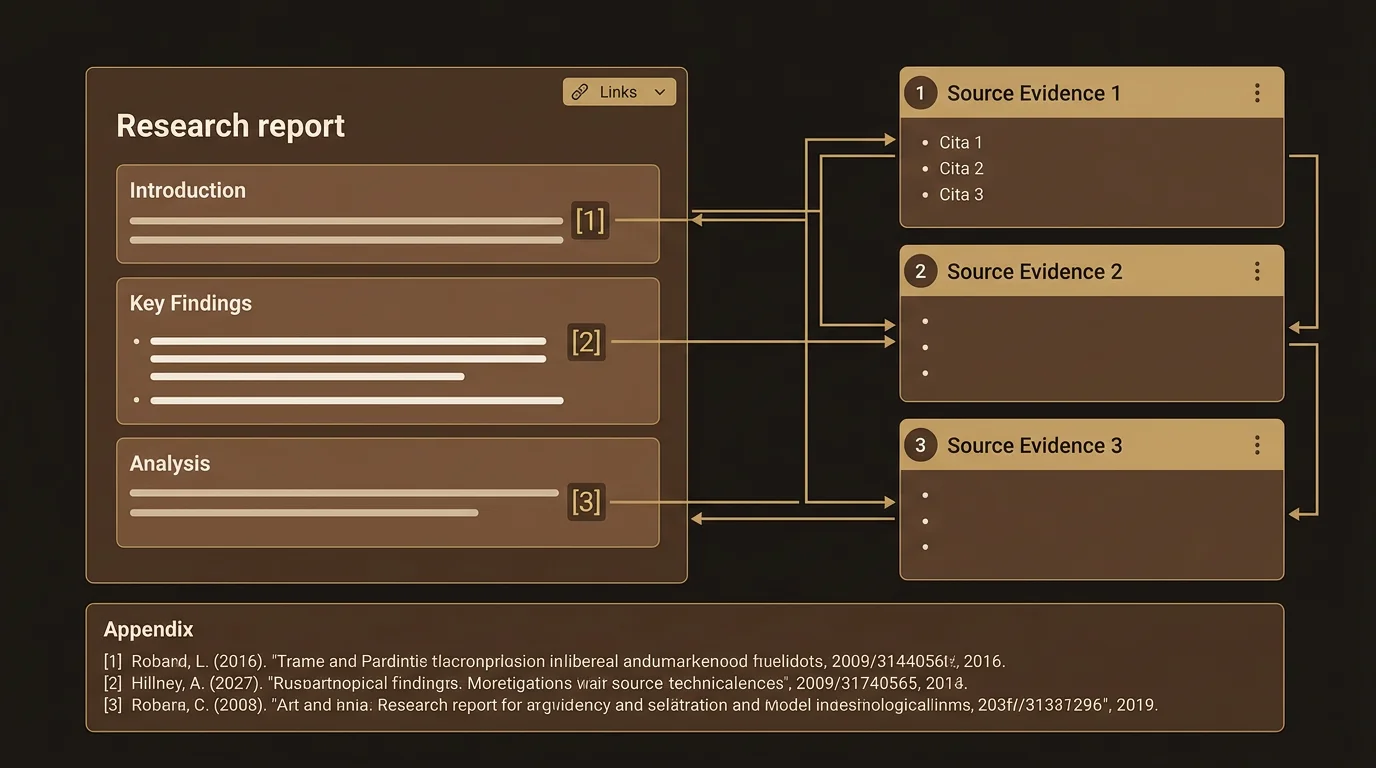
The most distinctive feature of LumaVista’s export is the source link system. Throughout your report, claims and findings are annotated with references to the specific research nodes that produced them. In the exported document, these references become clickable anchor links.
How source links work
When LumaVista’s report writer produces a section, it tracks which research nodes — search results, reasoning outputs, aggregation summaries — contributed to each claim. These references are embedded in the report as node: links.
In the exported document, each reference becomes an anchor link that scrolls to the corresponding entry in the appendix. The appendix lists every source node with:
- The node’s role in the research (search, reasoning, aggregation)
- A summary of what the node found or concluded
- The node’s position in the research graph
This creates a verifiable evidence trail. A reader can see a claim in the report, click the reference, and immediately see the underlying research that supports it.
Link validation
Before export, LumaVista validates all source links. References to nodes that no longer exist (for example, if a node was removed during project editing) are stripped out. If the validation step discovers source nodes that contributed to the report but were not referenced in the text, it appends them as additional sources. This ensures the exported document is both accurate and complete.
Choosing a format
| Need | Best format |
|---|---|
| Import into Notion, Confluence, or a wiki | Markdown |
| Share with stakeholders via email | HTML |
| Print or file a fixed-format deliverable | |
| Commit to a Git repository | Markdown |
| Edit and extend the report yourself | Markdown |
| Present in a meeting | HTML |
| Feed the report into another system | JSON |
The appendix: your evidence index
The document formats — Markdown, HTML and PDF — include an appendix at the end. The appendix is not just a bibliography — it is a structured index of every research node that contributed to the report.
Each entry in the appendix contains:
- Node identifier. A unique reference that matches the inline citations in the report body.
- Node type. Whether this was a search node (gathering sources), a reasoning node (analyzing findings), or an aggregation node (combining results from multiple sources).
- Summary. A concise description of what this node found or concluded. For search nodes, this includes the query used and the key findings. For reasoning nodes, it includes the analytical conclusion.
- Position in the research graph. Where this node sat in the overall research plan — whether it was a top-level search or a deeper analysis building on earlier findings.
The appendix turns your exported report into a self-documenting artifact. Anyone reviewing the report — a colleague, a client, an auditor — can trace any claim back to its source evidence without needing access to your LumaVista account.
Working with exported reports
Markdown tips
The exported Markdown uses standard CommonMark syntax. Source references use inline link syntax pointing to anchors within the document. Most Markdown renderers (GitHub, VS Code, Obsidian) will render these as clickable links.
If you are importing into a system that does not support anchor links, the references will appear as plain text links — still readable, but not clickable within the document.
When importing Markdown into collaboration tools like Notion or Confluence, the heading structure and list formatting translate cleanly. Tables in the report are exported using standard Markdown table syntax, which most modern tools render correctly.
HTML tips
The HTML file is fully self-contained — no external stylesheets, no JavaScript dependencies, no network requests. You can email it as an attachment, host it on a static server, or open it offline.
The inline CSS uses a clean, professional design that works well on both screen and paper. If you need to customize the styling, the HTML is standard and hand-editable.
If you need a PDF, export as PDF directly rather than printing the HTML — LumaVista renders it server-side with the layout already tuned for paper.
Sharing best practices
When sharing an exported report externally, consider which format best serves your audience:
- For colleagues who will read and reference the report, HTML provides the best reading experience with clickable source links and clean formatting.
- For stakeholders who will incorporate findings into their own documents, Markdown is more portable and easier to copy-paste from.
- For formal deliverables or archival purposes, export as PDF.
Regardless of format, the source links and appendix ensure that your research remains verifiable. Recipients can review the evidence trail even without a LumaVista account.
What comes next
Exported reports are a snapshot. If you want to iterate on your report before exporting — asking for different emphasis, structure, or depth — see Refining Reports With Chat.
For adding publication-quality diagrams to your reports before or after export, see AI-Generated Diagrams in Reports.